Works with and greatly enhances:
Windows 10
Windows 8, 7, Vista, XP
Servers 2003 and later
Starting at just $50 for home use and $69 for a business license (and a business two-pack for just $99!)
What's New / What's Up
Version 4: the future
Major new tools, significant upgrades to current components and lightening fast folder listings.
- Find and rename problem files: bad paths, illegal characters, Linux & iOS (Mac) characters.
- Check files and folders for compliance with
different file systems e.g., NTFS, Fat-16, Fat-32,
eFat, CDs, iOS, Linux and custom.
Know if the files are right before you copy. - Delete files no matter their length or how they are named.
- Powerful renaming with RegEx e.g. change 'Romeo Smith' into 'Smith, Romeo' and much more.
- Lightening fast directory listing no matter how large the folder.
- Detailed reports for copy errors.
- Variable text size for views and dialogs.
- and many more improvements and fixes..
See the V4 preview here.
Update May 2017
A May 2017 Microsft security update for Windows 10 conflicted with a major routine in FileBoss resulting in FileBoss not starting on some Windows 10 systems.
The current download, V3.101, fixes the problem.
You can read more about this at the page
Windows Creators Conflict.
How to Download FileBoss
Downloading is the process of copying a file (such as a game or utility) from one computer to another across the internet. When you download a game from our web site, it means you are copying it from the author or publisher's web server to your own computer. This allows you to install and use the program on your own machine.
Here's how to download a file using Internet Explorer and Windows XP. (This example shows a download of the file "dweepsetup.exe" from Dexterity Games.) If you're using a different browser such as Netscape Navigator or a different version of Windows, your screens may look a little different, but the same basic steps should work.
-
Click on the download link for the program you want to download. Many sites offer multiple download links to the same program, and you only need to choose one of these links.
-
You may be asked if you want to save the file or run it from its current location. If you are asked this question, select "Save." If not, don't worry -- some browsers will automatically choose "Save" for you.
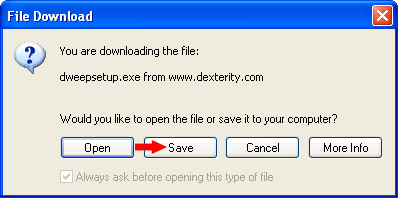
-
You will then be asked to select the folder where you want to save the program or file, using a standard "Save As" dialog box. Pay attention to which folder you select before clicking the "Save" button. It may help you to create a folder like "C:\Download" for all of your downloads, but you can use any folder you'd like.
-
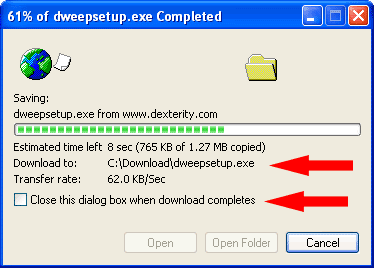
The download will now begin. Your web browser will keep you updated on the progress of the download by showing a progress bar that fills up as you download. You will also be reminded where you're saving the file. The file will be saved as "C:\Download\dweepsetup.exe" in the picture below.
Note: You may also see a check box labeled "Close this dialog box when download completes." If you see this check box, it helps to uncheck this box. You don't have to, but if you do, it will be easier to find the file after you download it.
-
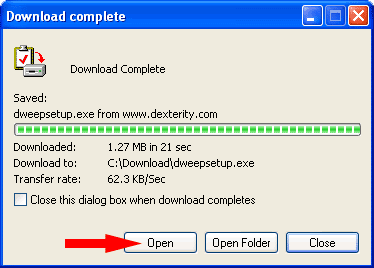
Depending on which file you're downloading and how fast your connection is, it may take anywhere from a few seconds to a few minutes to download. When your download is finished, if you left the "Close this dialog box when download completes" option unchecked, you'll see a dialog box like this one:
-
Now click the "Open" button to run the file you just downloaded. If you don't see the "Download complete" dialog box, open the folder where you saved the file and double-click on the icon for the file there.
What happens next will depend on the type of file you downloaded. The files you'll download most often will end in one of two extensions. (An extension is the last few letters of the filename, after the period.) They are:
-
.EXE files: The file you downloaded is a program. Follow the on-screen instructions from there to install the program to your computer and to learn how to run the program after it's installed.
-
.ZIP files: ZIP is a common file format used to compress and combine files to make them download more quickly. Some versions of Windows (XP and sometimes ME) can read ZIP files without extra software. Otherwise, you will need an unzipping program to read these ZIP files. Common unzipping programs are WinZIP, PKZIP, and BitZipper, but there are also many others. Many unzipping programs are shareware, which means you will need to purchase them if you use them beyond their specified trial period.
-
Happy downloading!
These instructions were provided by Jason Strautman of Universal Hint System and Steve Pavlina of Dexterity Software.

 What do you need to do today?