Quick Start
Show or go to the Command Bar
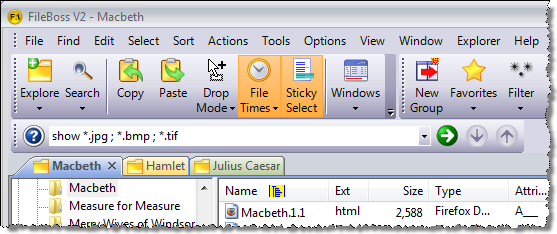
Press F8 to display the Command Bar. Press F8 again at any time to return to the Command Bar where you can start typing, pasting or selecting a previous command (F8 then F4 immediately)
Set a filter to display only some files
Show *.bmp ; *.jpeg ; *.jpg
Set a filter hide files
Show -*.bak ; -*.tmp ; -*.obj ; -~*
Select or Deselect files
SELect *.bak ; *.tmp ; .obj ; ~*
DESelect *.bak ; *.tmp ; .obj ; ~*
Go to a specific file (or one of a group)
Show -*.bak ; -*.tmp ; -*.obj ; -~*
Find OurVacation.doc
Find *marog*.jpg ; *marog*.psd
(Use Ctrl+F to show the command bar and enter Find command)
Display a specific folder in the current tab
C:\Users\FileBoss\Documents
<my documents>
Display a specific folder in new tab
New C:\Users\FileBoss\Documents
New <my documents>
Separating filenames and patterns
Filenames and patterns can be separated with semi-colons, commas, or the bar character ( ; , |). Leading and trailing white space is removed. A minus sign ( - ) before a pattern or filename means not or exclude.
What the command bar can do for you
The Command Bar provides a quick way to enter FileBoss commands directly by typing. And it keeps a record of the last significant commands entered so that you can simply select the command in the drop down list box and click the button at the right to execute the command. (You can also type or paste a command and then just press the Enter key to execute it.)
Using the command bar can really speed up some tasks as it can perform some actions without having to invoke a dialog, go to the appropriate field, enter the data and then click on the OK button. For instance if you want to select all files having the extensions bmp, jpeg and gif simply
- press F8 (To display and move the input focus to the Command Bar.)
- type select *.bmp ; *.jpeg ; *.gif and then
- press the Enter key.
- Press Shift+F8 at any time to execute whatever is in the Command Bar
How to Display the Command Bar
Press F8, select Window > Command Bar from the main menu or right-click on any toolbar and select Command Bar from the popup menu. All three methods will display the Command Bar if it is hidden. F8 will display the bar if hidden and will shift the input focus directly to the bar so you can just start typing.
Hint: Even if the Command Bar is visible just press F8 to move the input focus to the Command Bar so you can enter a command without having to use the mouse to get there first.
Chaining Commands
FileBoss commands can be chained together so that they are executed one after the other. To chain commands type " <> " between them.
For example consider the following Command Bar entry:
goto <md>\FileBoss Data <> show *.fbopts* <> select files
The three commands are separated by <>:
goto <md>\FileBoss Data
Tells FileBoss to display the folder <md>\FileBoss Data in the current Explore View (or create a new Explore view if necessary). (Note that <md> is a meta-folder representing the current user's My Documents folder.
show *.fbopts*
Tells FileBoss to set a filter so only files matching the following pattern are displayed.
select files
Tells FileBoss to select all visible files. (Note that step two can be skipped by making this command select *.fbopts*.)
There is no limit to the number of commands that can be chained other than the line can not be more than 32,000 characters long.
Available Commands
Conventions used in the definitions
Commands
shown with upper case letters followed by lower case letters can be entered with only the upper case part. For instance to enter the command to select all files you can enter sel files or select files.
sel
refers to the selected entries in the Contents window
cur
refers to the highlighted entry in the Contents window
nav
refers to the highlighted folder in the Navigation window (this is the folder whose contents are displayed in Contents Widow
<pathname>
must be a fully qualified path to a folder such as C:\FileBoss\Testimonials or \\CORP\c\FileBoss
<pattern>
is a file specification typically using one or more of the wildcards, * and ?. Such as *.jpeg or 00??.doc
Separating filenames and patterns
Filenames and patterns can be separated with semi-colons, commas, or the bar character ( ; , |). Leading and trailing white space is removed. A minus sign ( - ) before a pattern or filename means not or exclude.
<pathname>
e.g. c:\FileBoss\Testimonials
If an Explore view is active the contents of <pathname> is displayed in it. If another view is active a new Explore view is created and set to <pathname>.
This is exactly the same as entering the command view <pathname>
<pattern>, e.g. *.jpg | *.bmp
Sets a temporary filter of the view. The temporary filter will remain until it is changed with another command, turned off (filter off) or the View is closed. Unlike permanent filters, these temporary filters only apply to the View for which they were set.
If a view has a local filter it can be turned off and on using filter on and filter off.
This is exactly the same as entering filter <pattern>.
VIEW <pathname>
If an Explore view is present it is set to show the contents of <pathname>. If another type of view or no view is active a new Explore view is created and set to <pathname>.
This is exactly the same as just entering <pathname> on the command line all by itself.
To force the folder to be displayed in a new Explore view use the command explore <pathname>.
Compare to EXPLORE view.
ex:
explore C:\Windows
explore <pf>
explore <md>\My Docs
EXPlore ( cur | nav | <pathname> )
NEW ( cur | nav | <pathname> )
Creates a new Explore View and displays <pathname>. If <pathname> points to a file rather than a folder FileBoss will simply display the folder itself.
To display a different folder in a current Explore view use the VIEW command.
ex:
explore C:\Windows
explore cur
explore <pf>
explore <md>\My Docs
NEW FOLder or NEW DIR (<folder name>)
CREATE FOLder or CREATE DIR (<folder name>)
Creates a new folder below the current folder in the Navigation Window renaming it to <folder name> if specified. For Explore Views this is the folder displayed in the Contents window on the right.
ex:
create folder vacation pictures
new folder
FILTer or F ( <pattern> | on | off )
Temporarily filters what is displayed according to the specified pattern. These filters only apply to the current view and are not stored unlike the normal, persistent, global filters.
ex:
filter *.bmp | *.jpeg | *.gif | Pics*.doc
filter off
(Also see SHOW)
SHOW or S ( <pattern> | all | files | folders )
Shows specific types or groups of files
If a pattern is specified a temporary filter is set that filters what is displayed. Temporary filters only apply to the current view and are not stored unlike the normal, persistent, global filters.
ex:
show *.bmp | *.jpeg
show all
(Compare to HIDE)
HIDE (<pattern> | files | folders | selected | reverse | off )
Hides files and folders by type or by a pattern
Hides the specified files or changes the status of hidden files (reverse | off)
ex:
hide *.bak | *.tmp | ~*
hide files
hide folders
hide off (same as using the SHOW ALL)
FOLders (on | off | top | bottom )
Tells FileBoss where to display the folder entries in an Explore View's Contents window. This command correlates to the Explore | Display Folders At... main menu.
Applies to this and all Explore Views.
ex:
folders off
folder top
fol bottom
GOTO or GO to or G ( <pattern> | selected | error | folder )
Move to a specific file or type of file
Moves the highlight in the Contents window to the next entry that matches the pattern or specified type
ex:
goto *.jpeg
goto sel
SELect ( <patterns> | all | files | folders | reverse | off )
Selects the specified entries in the contents window.
If no argument is given the Select Files dialog is displayed.
ex:
sel *.bak | ~*
sel * | -*.bak | -*.tmp
sel files
sel none
sel (will display the select dialog)
DESelect ( <patterns> | all | files | folders )
Deselects the specified entries in the contents window.
If no argument is given the Deselect Files dialog is displayed.
ex:
des *.bak | ~*
des files
des all
UP
Moves up one folder in the navigation tree.
Available only in Explore Views
BACK
Moves back one folder in the navigation tree.
Available only in Explore Views.
FORward
Moves forward one folder in the navigation tree.
Available only in Explore Views.
SEArch (cur | nav | sel | <fullpath>)
Search and a Create File Set
Opens the Create File Set (Search) dialog and sets the folder(s) to search to those specified.
ex:
search cur
search sel
search <md> (the 'My Documents' folder)
search c:\Accounts
CLOSE
Closes the current view
Same as selecting File > Close from the main menu.
CLOSE ALL or CLOSEALL
Closes all open views.
Same as selecting Window > Close All Windows from the main menu.
Action Commands
The Actions commands are comparable to the commands found on the Actions main menu.
COPY
MOVE
REFresh
DUPlicate or STAMP
These invoke the same action dialogs as their equivalent items on the Actions menu, e.g. Actions > Copy To... on the main menu.
Requires that entries be selected first.
DUPlicate / STAMP
Makes copies of the selected items in the same folder as they are in first displaying a dialog where the names for the copies can be specified.
Requires that entries be selected first.
ex:
duplicate
stamp
REFresh
Copies selected files to a specified destination only if the destination files exist and are older than the source files (Requires selected files or folders)
ex:
refresh
COPY TREE or COPYTREE or TREE
Copies the structure of the selected folders to a destination you provide. While the structure is copied no files are copied.
ex:
copy folder
copy tree
DELete ( current | nav | selected )
Deletes the specified entry or entries.
ex:
Delete nav
Delete selected
RECycle ( current | nav | selected )
Send the specified entries to the Recycle Bin. If no argument is specified selected is assumed.
ex:
Recycle nav
Recycle selected
DROP or DROP ZONE or DZ
Displays or hides the List of Drop Targets.
ex:
drop zone
DOS ( cur | nav | <pathname> )
Opens a DOS window (cmd.exe or command.com) and sets the active directory to the specified path if given. If no argument is specified the DOS window is set to the active folder.
ex:
dos c:\program files\fileboss
dos <pf>\fileboss
dos cur
dos
OPEN or EXEcute or X or RUN ( cur | nav | <pathname> )
Opens the specified files or executes the specified programs as appropriate.
ex:
execute nav
execute sel
run regedit
execute c:\program files\fileboss
NEW ( cur | nav | <pathname> )
If no arguments are given opens new explore window to the last folder.
ex:
new c:\My Pictures
HELp or ? (command)
Displays full help for the command bar. For quick syntax help for a specific command the the command followed by a question mark.
HELP GUIDE or GUIDE or HELPG
Displays (or hides) the floating Help Guide for finding how to accomplish specific tasks in FileBoss.
Repeats the last significant Action command, e.g. Copy, Move, Rename, etc.
ex:
LAST
REN ( sequential | replace | transform | advanced | manual | again )
Rename Selected Entries
Displays the Rename Dialog. If one of the optional rename types is given the appropriate renaming page will be displayed, e.g. sequential, search and replace, transform or advanced. If the option is 'manual' the selected files will be displayed one by one for renaming.
ex:
ren seq
ren advanced
(Also see RENS, RENA, RENT, RENM, RENQ)
RENS / REN SEQ
Rename Selected Entries Sequentially
Displays the Rename Dialog for renaming the selected files with the Sequential panel open.
Same as REN REP.
ex:
rens
RENA / REN ADV
Displays the Rename Dialog for renaming the selected files with the Advanced panel open.
Same as REN ADV.
ex:
rena
RENT / REN TRANsform
Rename selected entries using transformations
Displays the Rename Dialog for renaming the selected files with the Transform panel open.
Same as REN TRANS.
ex:
rent
RENM / REN MANUAL
Presents each selected entry in the Rename box one by one where they can be manually given new names or skipped as appropriate.
Same as REN MANUAL.
ex:
renm
RENQ / REN SEQ
Displays the Rename Dialog for renaming the selected files with sequential numbers
Same as REN SEQ.
ex:
renq
CHAnge
Change Times and Attributes
Changes the file times and/or attributes of selected entries through a dialog interface
ex:
change
TOUch
Touches selected entries changing specified attributes and file times
ex:
touch |

 What do you need to do today?