The BEST File Manager for Windows
Works with and greatly enhances:
Windows 11, 10
Windows 8, 7, Vista, XP
Servers 2003 and later
Starting at just $50 for home use and $69 for a business license (and a business two-pack for just $99!)
What's New / What's Up
Version 4: the future
Major new tools, significant upgrades to current components and faster folder listings.
- Find and rename problem files: bad paths, illegal characters, Linux & iOS (Mac) characters.
- Check files and folders for compliance with different file systems e.g., NTFS, Fat-16, Fat-32, eFat, CDs, iOS, Linux and custom.
Know if the files are right before you copy. - Delete files no matter their length or how they are named.
- Powerful renaming with RegEx e.g. change 'Romeo Smith' into 'Smith, Romeo' and much more.
- Lightening fast directory listing no matter how large the folder.
- Detailed reports for copy errors.
- Variable text size for views and dialogs.
- and many more improvements and fixes..
See the V4 preview here.
Update May 2017
A May 2017 Microsft security update for Windows 10 conflicted with a major routine in FileBoss resulting in FileBoss not starting on some Windows 10 systems.
Versions V3.101 and later, fix the problem. You can read more about this at the page
Windows Creators Conflict.
Finding Old Files
Open the Find Old Files dialog
-
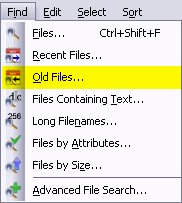 Select
Find | Old Files...
or (Alt+I,O) from the main menu to open the dialog where you can specify exactly which files you want to find.
Select
Find | Old Files...
or (Alt+I,O) from the main menu to open the dialog where you can specify exactly which files you want to find. - If one or more folders are selected they will be automatically entered into the Paths filed of the dialog when it opens
- FileBoss remembers what has been searched in the past even when it has been closed and then started again so you can always select a previous entry using the drop down list.
Specify what you want to find
Click image for more options
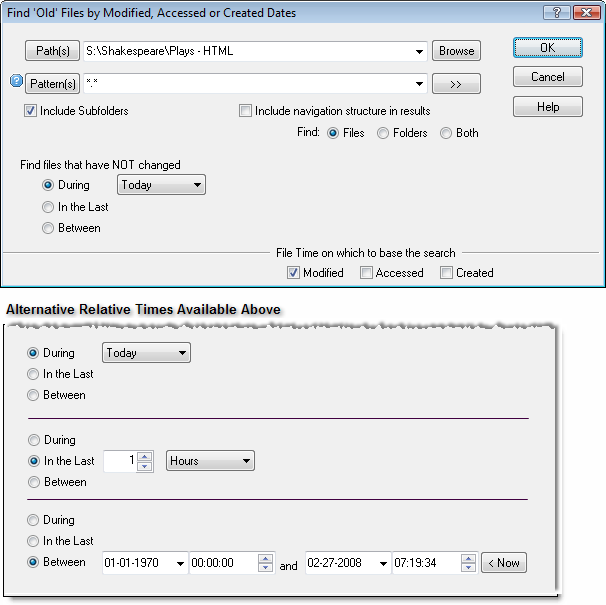
- Select the drives or paths you want to check. Multiple paths are separated with the semi-colon (;), comma (,) or bar character (|). You can even specify folders to exclude by preceding the name with a minus sign. For complete details right-click the field in the program.
- Select the type of time you are looking for. Normally it is best to use the Modified or possibly Accessed time. The Created time can be very misleading as Windows tends to reset the Created times inconsistently.
- Then select the time frame you are looking for. There are three types of time frames, During, In the Last and Between.
- Finally select the value for the time frame, e.g. the number of hours, minutes days, months, whatever is appropriate for your time frame.
- Click OK to search and create a Virtual Folder of all matching files
In the above example FileBoss will search for all files which have not been since mid-night on the current day
Hint: You can limit your search (and thus speed it up and make its results more meaningful) by specifying one or more folders to search instead of just a whole drive. You can also, in the Patterns field, specify only certain files to search file such as *.doc ; *.jpg ; *.jpeg ; *.html ; *.htm.
More about entering multiple paths and patterns


Both the paths and file patterns fields can accept either simple entries, e.g.
C\Data\My Data and *.bmp or very complex strings that specify not only what to include but also what to exclude from a, most typically, search.
For instance both can specify multiple objects such as
C\Data\My Data ; D:\Backup\MyData
and
*.bmp ; *.gif ; *.png ; *.jpeg ; *.jpg
For a complete description of these fields either right-click the mouse over the fields for context help from within FileBoss or see Advanced Paths & Patterns.
Sort for files based on their file times
- Activate or open an Explore View
- Make sure that the column for showing the Modified, Accessed and/or Created file times is visible (if not see the next section for how to display the column).
- Click on the appropriate Column header twice to sort all entries by most recent file times
Innovative File Time Modes
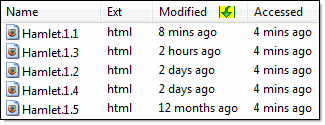

FileBoss has innovative alternatives to the traditional way of displaying file times.
(Optional of course!)
The first shows file times by age, e.g. 8 minutes ago, 2 hours ago.
Both methods can be really handy when you have an Explore view or Virtual Folder sorted by file times. And you can quickly switch between any of the three modes (traditional, by age, by calendar period) using the button on the top tool bar or using the View > File Times > main menu items.
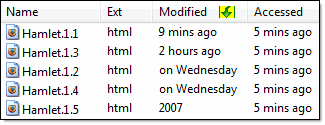

The second shows file times by by calendar period, e.g. in February, 2007
Hint: If you are looking at folders that contain lots of files and you know the extension or possible extensions of the file(s) you are looking for you can use a File Filter to only display those files.
Or you can even used Advanced Filtering to only show files with Modified times in the range you want.
Displaying the file times in the contents window
(If the file times are not already displayed in the Contents Window)
-
This works the same in both Explore Views and Virtual File Sets.
-
Move the mouse over the column headers (the column headers are at the top of the Contents Window and have titles like Filename, Ext and Size.)
-
Right-click the to display a list of columns that can be displayed
-
Check the boxes next to Modified, Accessed or Created as appropriate.
-
Click the Close Menu button.
Hint: You can change the order of the columns by clicking a header with the left mouse button and, while holding the mouse button down, dragging the column to its new location.
Sorting by Times
- Simply click on one of the file time columns. To reverse the sort click the column again.

 What do you need to do today?