The BEST File Manager for Windows
Works with and greatly enhances:
Windows 11, 10
Windows 8, 7, Vista, XP
Servers 2003 and later
Starting at just $50 for home use and $69 for a business license (and a business two-pack for just $99!)
What's New / What's Up
Version 4: the future
Major new tools, significant upgrades to current components and faster folder listings.
- Find and rename problem files: bad paths, illegal characters, Linux & iOS (Mac) characters.
- Check files and folders for compliance with different file systems e.g., NTFS, Fat-16, Fat-32, eFat, CDs, iOS, Linux and custom.
Know if the files are right before you copy. - Delete files no matter their length or how they are named.
- Powerful renaming with RegEx e.g. change 'Romeo Smith' into 'Smith, Romeo' and much more.
- Lightening fast directory listing no matter how large the folder.
- Detailed reports for copy errors.
- Variable text size for views and dialogs.
- and many more improvements and fixes..
See the V4 preview here.
Update May 2017
A May 2017 Microsft security update for Windows 10 conflicted with a major routine in FileBoss resulting in FileBoss not starting on some Windows 10 systems.
Versions V3.101 and later, fix the problem. You can read more about this at the page
Windows Creators Conflict.
Creating Dynamic Virtual Folders
Using the Folder Picker
Creating Virtual Folders by Picking the Folders
A new Dynamic Virtual Folder (DVF) can be created by picking the specific folders it should contain. And once it has been created you can continue to add more items to the DVF by drag and drop.
After the initial DVF has been created you can make dragging and dropping easier by moving the new Virtual Folder to its own Tab group and then drag from an Explorer tab to the Virtual Folder as shown below.
To Create the Dynamic Virtual Folder
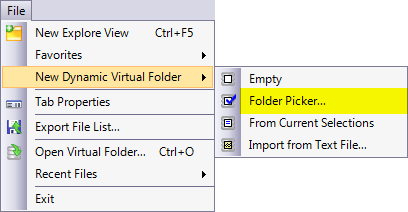 Press
Alt+F, D, P
Press
Alt+F, D, P
Or select File > New Dynamic File Set > Folder Picker...
Using the Folder Picker
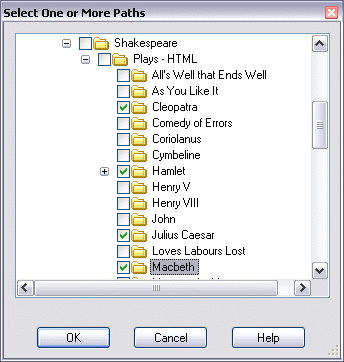
Use the Folder Picker to select one or more folders that will initially populate the new Dynamic Virtual Folder.
You can select as many as you wish by checking the boxes to the left of the folder names.
The folder picker will remember your selections even if you close up the folder tree or shift do a different section of you system entirely.
If you would like the folder picker window to be taller or wider simply move the cursor to the lower right corner, click and hold the left mouse button and drag until the window is the size you want.
Adding More Files and Folders
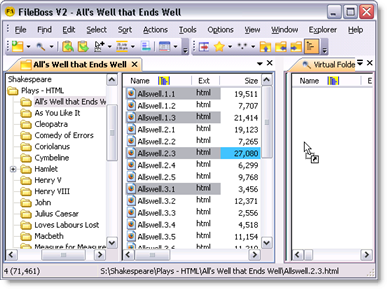
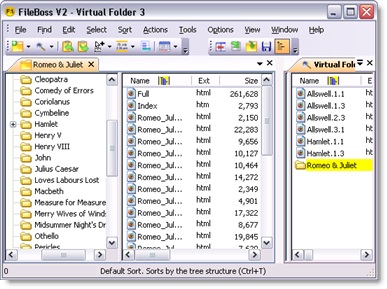
After the DVF has been created you can drag and drop files and folders on to it and even sort the entries by dragging them up and down.
When you drop new objects on a Virtual Folder be sure to drop them on empty space or over a file. If you drop objects over a folder they will be copied to that folder rather than added to the virtual folder.
The easiest way to do this is to put the Virtual Folder tab into a tab group by itself and then use an explore view to drag files and folders to it. (Note that in the pictures below the Tab Group for Dynamic virtual folder has been moved to the left to make everything easier at this small size. To adjust the positions of the tab groups just put the cursor over the wide bar between them, click and hold the left mouse button and drag right or left to the new position.)

 What do you need to do today?