The BEST File Manager for Windows
Works with and greatly enhances:
Windows 11, 10
Windows 8, 7, Vista, XP
Servers 2003 and later
Starting at just $50 for home use and $69 for a business license (and a business two-pack for just $99!)
What's New / What's Up
Version 4: the future
Major new tools, significant upgrades to current components and faster folder listings.
- Find and rename problem files: bad paths, illegal characters, Linux & iOS (Mac) characters.
- Check files and folders for compliance with different file systems e.g., NTFS, Fat-16, Fat-32, eFat, CDs, iOS, Linux and custom.
Know if the files are right before you copy. - Delete files no matter their length or how they are named.
- Powerful renaming with RegEx e.g. change 'Romeo Smith' into 'Smith, Romeo' and much more.
- Lightening fast directory listing no matter how large the folder.
- Detailed reports for copy errors.
- Variable text size for views and dialogs.
- and many more improvements and fixes..
See the V4 preview here.
Update May 2017
A May 2017 Microsft security update for Windows 10 conflicted with a major routine in FileBoss resulting in FileBoss not starting on some Windows 10 systems.
Versions V3.101 and later, fix the problem. You can read more about this at the page
Windows Creators Conflict.
Quickly Backup
Files, Directories and Paths

This is a great way to quickly merge one folder or path into another or to only backup files that have changed. In fact many use this tool rather than the regular copy routine for most of their copying needs. But if you need more control check out the Compare, Merge & Prune routine for ultimate control or take a look at the master copy routine, Copy Files, that offers unprecedented control over the how files are copied. And at the bottom of this page are links to all the copy based tools.
If you would like to completely synchronize the destination directory with the source see the Backup & Sync routine. Synchronizing the destination directory will make it the same as the source folder: updating its files and deleting all files and folders on the destination directory that don't exist on the source.
How backup new and modified files and folders
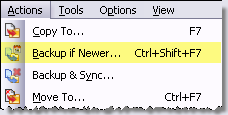
This action is applied to selected files and folders. If no folders or files have been selected the menu command will be unavailable. For folders all subfolders will also be backed up.
- Select the files and/or directories you need to backup.
- Select Actions | Backup if Newer... or (Ctrl+Shift+F7) from the main menu to open the Backup dialog.
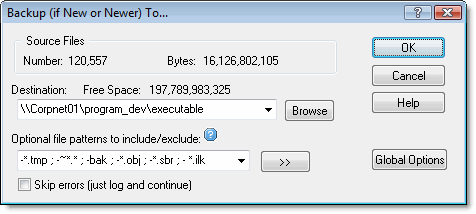
Enter the destination folder
- Enter the destination directory. If you have used the dialog before you can select a previous destination from the drop down list box.
Optionally enter files to be copied (or files not to be copied)
- To copy all files leave the Patterns field blank or enter and asterisk (*).
- Separate multiple patterns with semi-colons, commas or bar characters ( ; , | ) and precede patterns to be excluded with a minus sign (-).
If no patterns are entered all is assumed (i.e. leaving the field blank is the same as entering a * or the traditional *.*). - To prevent certain files from being copied enter their pattern(s) preceding each with a minus sign, e.g. -*.bak : -*.tmp : -~*.
- You can even combine files to copy and files to exclude, e.g. *.htm : *.html : *.css : -~* (note that order in which the file patterns are listed is not significant - excluding files will always take precedence or specifically including them.
- Click the OK button and FileBoss will start the copying and display a progress window.
More about Quick Backups
Only if Newer
Files will only be copied to the destination drive if they don't already exist there or the source file has been changed or modified more recently than the file in the destination directory.
Other Criteria for Comparison
The way in which FileBoss compares files to see determine which is Newer can be modified using meta flags. These flags are specified right in the Destination field of the Backup if Newer... or any of the otherCopyCopy dialogs (but they are only used in Only if Newer overwrite option is checked). For example if you want to have source files overwrite existing target files only when their created date is more recent than the target file the destination field might look like this:
\\CorpNet\v\NewFiles\ //BYCREATED
Since these are advanced options that are seldom used they are left as meta-flags rather than options on the dialogs themselves.
//ByModified or //BM (default)
Overwrites the target only if the source file's modified date is more recent than that of the target file.
//ByCreated or //BC
Overwrites the target only if the source file's created date is more recent than that of the target file.
//ByAccessed or //BA
Overwrites the target only if the source file's accessed date is more recent than that of the target file.
//BySmaller or //BS
Overwrites the target only if the source file is smaller
//ByLarger or //BL
Overwrites the target only if the source file is larger
Optionally restrict the copy to specific files or file type
You can optionally specify multiple file types and file patterns that should be copied. When the specification is present only files matching one of the specified patterns will be copied. For instance if *.htm : *.html ; *.css were specified then only files with those extensions would be copied.
Prevent specific file types and groups from being copied
You can optionally specify multiple file types and file patterns that should not be copied. This can reduce the copy time and, sometimes more importantly, prevent your backup folder/drive becoming cluttered with intermediate and temporary files. And it can be combined with the option to specify which file should be copied, e.g. *.htm ; *.html ; *.css ; -~* will copy all files with the extensions htm, html and css unless the name begins with the tilde character (~) (a common way programs specify temporary files).
Retry option on file errors
If FileBoss can not copy a file it will give you the option of trying again (such as if you have to close a file that is in use) or just skip the file. Of course FileBoss will log any files that were skipped due to copy errors.
You can turn this feature off by checking the Skip errors (just log and continue) box on the appropriate copy dialog. When this box is checked and errors occurred the Errors history window will pop up and display the problem files after the copying has finished.
Complete logging of what was and was not copied
The Results window keeps a complete log of what was copied, what was not and what errors occurred if any. These logs can even be automatically written to disk as simple text files for future reference

 What do you need to do today?