The BEST File Manager for Windows
Works with and greatly enhances:
Windows 11, 10
Windows 8, 7, Vista, XP
Servers 2003 and later
Starting at just $50 for home use and $69 for a business license (and a business two-pack for just $99!)
What's New / What's Up
Version 4: the future
Major new tools, significant upgrades to current components and faster folder listings.
- Find and rename problem files: bad paths, illegal characters, Linux & iOS (Mac) characters.
- Check files and folders for compliance with different file systems e.g., NTFS, Fat-16, Fat-32, eFat, CDs, iOS, Linux and custom.
Know if the files are right before you copy. - Delete files no matter their length or how they are named.
- Powerful renaming with RegEx e.g. change 'Romeo Smith' into 'Smith, Romeo' and much more.
- Lightening fast directory listing no matter how large the folder.
- Detailed reports for copy errors.
- Variable text size for views and dialogs.
- and many more improvements and fixes..
See the V4 preview here.
Update May 2017
A May 2017 Microsft security update for Windows 10 conflicted with a major routine in FileBoss resulting in FileBoss not starting on some Windows 10 systems.
Versions V3.101 and later, fix the problem. You can read more about this at the page
Windows Creators Conflict.
Creating a Virtual Folder
from a Text File
Create the text file
Create a plain ASCII text file with one file to a line with its full path, e.g.
\\corpnet\backup\user files\london\expense.doc
\\corpnet\backup\user files\london\notes.doc
\\corpnet\backup\user files\london\ideas.doc
...
The entries can be in any order and folders need not be entered unless they are expressly needed.
Open the Import dialog

In FileBoss use the File > New Dynamic File Set > Import from Text File... command from the main menu to display the Import File Set from Text File dialog.
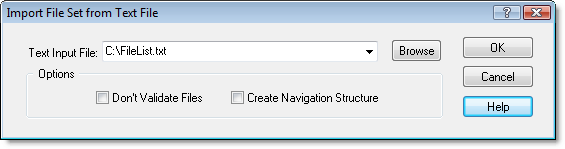
Enter or Browse for the input file
Browse for the file you want to input using the 'Browse' button and then press the OK button.
FileBoss will then read the text file and load each file into a Dynamic File Set.
Don't Validate Files
If the Don't Validate Files box is checked FileBoss will check each entry for existence and if an entry in the text file can't be found FileBoss will display it in red. If there are many network entries that can't be found FileBoss will take quite sometime as checking for missing files on a network is very time consuming.
Create Navigation Structure
If the Create Navigation Structure box is checked FileBoss will attempt to create a file structure for the files. But if the imported files are pretty much at random, file structure wise the structure FileBoss creates may be quite ugly..
Once the entries are loaded successfully you can manage them with all of FileBoss's tools just the same as in any other view.

 What do you need to do today?