The BEST File Manager for Windows
Works with and greatly enhances:
Windows 11, 10
Windows 8, 7, Vista, XP
Servers 2003 and later
Starting at just $50 for home use and $69 for a business license (and a business two-pack for just $99!)
What's New / What's Up
Version 4: the future
Major new tools, significant upgrades to current components and faster folder listings.
- Find and rename problem files: bad paths, illegal characters, Linux & iOS (Mac) characters.
- Check files and folders for compliance with different file systems e.g., NTFS, Fat-16, Fat-32, eFat, CDs, iOS, Linux and custom.
Know if the files are right before you copy. - Delete files no matter their length or how they are named.
- Powerful renaming with RegEx e.g. change 'Romeo Smith' into 'Smith, Romeo' and much more.
- Lightening fast directory listing no matter how large the folder.
- Detailed reports for copy errors.
- Variable text size for views and dialogs.
- and many more improvements and fixes..
See the V4 preview here.
Update May 2017
A May 2017 Microsft security update for Windows 10 conflicted with a major routine in FileBoss resulting in FileBoss not starting on some Windows 10 systems.
Versions V3.101 and later, fix the problem. You can read more about this at the page
Windows Creators Conflict.
Innovative File Time Modes
FileBoss offers unique alternative display modes for file times are available in both Explore views and Virtual folders. The are incredibly handy when sorting a list of files by time. Both methods can be really handy when you have an Explore view or Virtual Folder sorted by file times. And you can quickly switch between any of the three modes (traditional, by age, by calendar period) using the button on the top tool bar or using the View > File Times > main menu items.
Relative Times
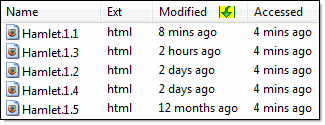
 The first shows file times by age, e.g. 8 minutes ago, 2 hours ago.
Since these times are relative to the current time they will be updated each time the directory is displayed.
Calendar Times
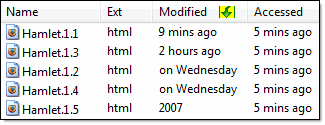

The second shows file times by by calendar period, e.g. in February, 2007
- As you move from folder to folder the files will remain sorted according to chosen time.
Hint: If you are looking at folders that contain lots of files and you know the extension or possible extensions of the file(s) you are looking for you can use a File Filter to only display those files.
Or you can even used Advanced Filtering to only show files with Modified times in the range you want.
Displaying the File Times in the Contents Window
(If the file times are not already displayed in the Contents Window)
-
This works the same in both Explore Views and Virtual File Sets.
-
Move the mouse over the column headers (the column headers are at the top of the Contents Window and have titles like Filename, Ext and Size.)
-
Right-click the to display a list of columns that can be displayed
-
Check the boxes next to Modified, Accessed or Created as appropriate.
-
Click the Close Menu button.
-
Hint: You can change the order of the columns by clicking a header with the left mouse button and, while holding the mouse button down, dragging the column to its new location.
Sorting by Times
- Simply click on one of the file time columns. To reverse the sort click the column again.

 What do you need to do today?