The BEST File Manager for Windows
Works with and greatly enhances:
Windows 11, 10
Windows 8, 7, Vista, XP
Servers 2003 and later
Starting at just $50 for home use and $69 for a business license (and a business two-pack for just $99!)
What's New / What's Up
Version 4: the future
Major new tools, significant upgrades to current components and faster folder listings.
- Find and rename problem files: bad paths, illegal characters, Linux & iOS (Mac) characters.
- Check files and folders for compliance with different file systems e.g., NTFS, Fat-16, Fat-32, eFat, CDs, iOS, Linux and custom.
Know if the files are right before you copy. - Delete files no matter their length or how they are named.
- Powerful renaming with RegEx e.g. change 'Romeo Smith' into 'Smith, Romeo' and much more.
- Lightening fast directory listing no matter how large the folder.
- Detailed reports for copy errors.
- Variable text size for views and dialogs.
- and many more improvements and fixes..
See the V4 preview here.
Update May 2017
A May 2017 Microsft security update for Windows 10 conflicted with a major routine in FileBoss resulting in FileBoss not starting on some Windows 10 systems.
Versions V3.101 and later, fix the problem. You can read more about this at the page
Windows Creators Conflict.
History of Updates and Changes
Most Recent Changes
This page lists changes prior to the most recent version. See What's New for changes to the most recent version.
FileBoss V2.510
Version 2.515 is a small service release implementing the following changes:
- Decreases the time FileBoss takes to load and start on many systems.
- Solves problem where FileBoss would sometimes freeze or exhibit strange behavior after deleting multiple folders.
- Solves rare startup problem encountered on a few XP 64-bit systems.
- Removes the Only if newer overwrite option from the Move dialog as a safety precaution.
- Better registration support for Windows 7 x64.
FileBoss V2.510
If you have FileBoss version 2.502 and you don't use Windows 2000 you do not need to download and install this release as the changes only affect users of Windows 2000.
This release is a fix for some installations of Windows 2000 where FileBoss would not display any files or folders in the either the left or right windows (folders list or contents views) except the Recycle Bin and, possibly, a link to Windows Explorer).
Version 2.510 is a free upgrade for all current FileBoss customers. Just download, install and enjoy!
FileBoss V2.5
What's New, What's Hot
3 August 2009
(A minor update was released on 9 August 2008, Ver. 2.502, with speed improvements for remote connections.)
Version 2.5 is a free upgrade for all current FileBoss customers. Just download, install and enjoy!
Installation
FileBoss version 2.5 will install right over your current production version of FileBoss.
Although the new version has a completely different method and format for storing options, settings and virtual folders, the first time it is run it will read in the old files, convert them to the new format and then write out the new format to disk - leaving the original files intact.
An x (standing for XML) has been added to the end of the extensions for all affected files so that for example fileboss.fbopts becomes fileboss.fboptsx
Menu and Toolbar Changes
To see the significant menu additions see Menu Changes for Version 2.5
New Tools and Features
Immediately following the list of additions and changes below are detailed descriptions of everything that is new. To go directly to the details click Detailed Descriptions of Additions and Changes.
New
- Backup & Sync... action command, more...
- Copy/Backup to multiple destinations, more...
- Hide system, hidden and other categories of folders and files in Explore mode, more...
- Display and sort drives by different types of sizes (used, free, capacity), more...
- Hide and/or minimize FileBoss when copying, more...
- Natural numeric ordering, e.g. 1, 012, 2, 3, 33, 40... more...
- Added /elevated command line parameter, more...
- Added /select command line parameter, more...
- Search toolbar button renamed to Find and now invokes last Find operation, more...
- Error log automatically displayed after any operation that had an unreported error, more...
- Better handling of changing CDs / DVDs, more...
- Drag & Drop toolbar button now rotates between Copy and Move instead of Copy, Move and Create Shortcut, more...
- File extensions can now be removed in batch renaming, more...
- Optional criteria for Backup if Newer operation, more...
- Improved formatting of history log entries for readability, more...
- Touch files recursively without stopping on errors, more...
- Expanded right-click menus, more...
- Auto completion of filenames in dialogs, more...
- Auto completion of full filenames on the Command Bar, more...
- New bookmarks can now be edited when created, more...
- Command bar will now select files that are entered, not just go to it.
- Tools and Viewers dialog data can now be loaded and saved independently.
- Interchangeable files for Options and Settings and File Sets between FileBoss versions, more...
Fixes and minor changes
- Fixed rare but significant bug in rename routines where when adding folder names the folder names could be added multiple times.
- Fixed CD/DVD file listing which occurred on some HP LightScribe drives.
- Show true icons with programs such as Tortoise CVS.
- Default compare resolution now five seconds.
- Renaming current folder would not always update the display
- Copying to network drives time outs have been improved, i.e. they don't occur frequently.
- Adding a folder to the list of Drop Targets now displays the Drop Target list if it isn't already visible
- Fixed rare but aggravating problem when aborting copy operations which was very slow at times
- Fixed Find command from some right-click menus over folders so it now works
- Fixed inactive right-click commands
- Fixed animation in the progress window when copying files
- Fixed rare problem in under Windows Vista where some systems files would be listed in the contents window but not in the navigation window
- Fixed Windows Vista problem where ZIP, TIB, RAR and some other archive formats would sometimes be displayed as folders rather than files
Detailed Descriptions of Additions and Changes
Backup & Sync... action command
 This is a great way to quickly synchronize a backup folder or path with another or to backup files and is ideal for when you want to make the backup folder the same as the source folder with the safety of not accidentally copying files the other way around.
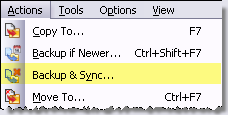
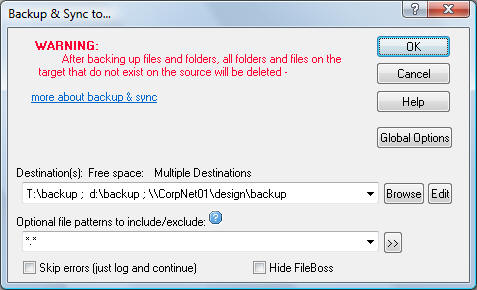
The complete details are located on the Quickly Backup and Sync page.
Copy to multiple destinations
Copies can now be quickly sent to multiple destinations by simply listing each destination in the Destination(s) field of any copy based dialog such as Copy To, Backup if Newer and Backup & Sync. (Multiple destinations can not be use with the Move To copy action.)
Entering multiple folders
You can enter as many paths as you want up to a limit of 32,000 characters.
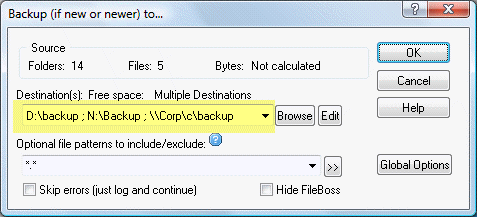
Enter the list of folders in the Destination(s) field as shown highlighted in yellow above. Each path must be separated with a comma, semi-colon or the bar character (, ; or |).
Clicking the Browse button will display a folder picker where you can select one or more folders that FileBoss will enter into the Destination(s) field for you.
And you can always click the Edit button to bring up a dialog where you can add, edit and order the paths. This is especially handy when dealing with more than three or four paths.
Entering comments in the Destination field
Sometimes it is convenient to have a title for a long list of destination folders. You can enter a comment anywhere in the string (though at the beginning is normally best so that it can be seen) in the form
<cmt: your text here>
for example
<cmt: network backup>
This would make the Destination(s) field in the above dialog look something like:
<cmt: network backup> D:\backup ; N:\backup ; \\Corp\c\backup
For more information about copying to multiple folders in one command see Copy to Several Folders at Once.
Edit dialog for copy destinations
To enter multiple target folders easily use the Browse button to the right of the Destinations field. This will open a special dialog for entering or editing multiple destinations.
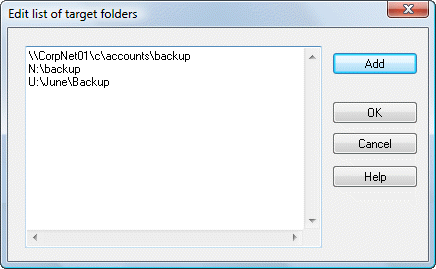
For more on using this dialog see Edit dialog for copy destinations
Auto completion of filenames in dialogs
FileBoss will now auto complete filenames in most dialogs and on the command bar when the full path is given and is the first thing to be typed in the field.
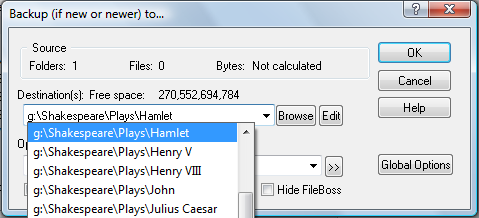
Auto completion of full filenames on the Command Bar
To type or paste in a complete file or folder path to go to press F8 put the cursor in the Command Bar (and display the command bar if it is hidden) and then type or paste the path hitting the Enter key or clicking the green arrow to the right.
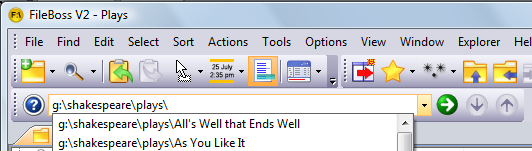
Hide system, hidden and other categories of files in Explore mode
This menu hides or displays groups of folders defined by special attributes or other conditions as explained below.
Note that these are global settings and changes will affect all Explorer tabs both current and future. These settings are not present and do not affect Virtual Folders.
The default setting is to Exclude None.
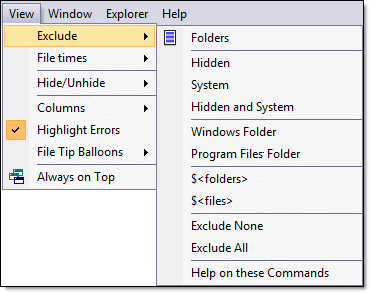 Hidden, System, Hidden and System
Hide all files and folders that have the Hidden, System, or Hidden and System attributes set. The Hidden and System setting requires both attributes to be set for the file or folder to be excluded.
Windows Folder
Hides the Windows system folder, typically but not always C:\Windows
Program Files Folder
Hides the Program Files system folder, typically but not always C:\Program Files
$<folders>
Hide all folders when the name starts with a dollar sign. Folders with a name starting with a dollar sign are frequently special folders used by the Windows operating system.
$<files>
Hide all files when the name starts with a dollar sign. Files with a name starting with a dollar sign are frequently special files used by the Windows operating system.
Exclude None, Exclude All
Turns all of the above settings off or on. However the Folders setting is not affected.
Folders
Excludes or includes folders in the contents (right-hand) window. This toggles their display on and off.
Options for the display of folders can also be changed using the Explorer > Display Folders at > command from the main menu. These commands allow you to hide the folders or to display them at the top or bottom of the list.
For a permanent reference to this facility see: Hiding and showing specific files and folders
Display and sort drives by different types of sizes (used, free, capacity)
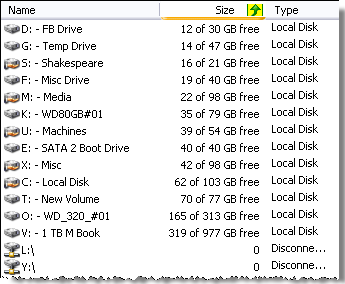 When
My Computer folder (or just Computer
depending on the version of Windows in use) is displayed you can now have it show the size, used and free space on all your drives and even sort by it.
When
My Computer folder (or just Computer
depending on the version of Windows in use) is displayed you can now have it show the size, used and free space on all your drives and even sort by it.
The graphic the right is a sample of the drives sorted by the amount of free space they contain.
The screen shot to the right shows the drive sizes option set to show the free space and is sorted by the amount of free space available on each drive.
For complete details see How to display drive information.
For more information see: Show Drive Names & Sizes
Natural numeric ordering
When entries (folders and files) are sorted by their names FileBoss now uses natural numeric ordering. This means what a computer would consider good ordering:
003.txt
1.txt
15.txt
2.txt
are now displayed as what humans consider the proper order.
1.txt
2.txt
003.txt
15.txt
This applies to numbers anywhere in FileNames:
Picture 1.txt
Picture 2.txt
Picture 003.txt
Picture 15.txt
de and/or minimize FileBoss when copying
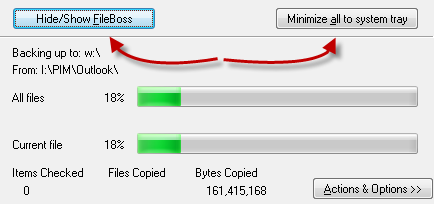 FileBoss can be hidden during a long copy operation by either hiding FileBoss's main window leaving just the progress dialog visible or by minimizing everything to the system tray.
FileBoss can be hidden from the progress dialog, from any of the copy dialogs or by using meta-commands.
For Complete details see Hiding FileBoss.
Better handling of changing CDs / DVDs
The way FileBoss handles the folder listings when changing CDs and DVDs has been improved to lessen the number of mouse clicks to get the listing of the new media.
Fixed CD/DVD file listing which occurred on some HP LightScribe drives
Fixed problem with erroneous file listings on some HP LightScribe drives. Previously the name of the first file would be repeated for each file on the CD / DVD.
Error log automatically displayed after any operation that had an unreported error
When performing some operations on files, e.g. long copy operations, where there is the option to skip any errors, and that option has been selected, FileBoss will automatically display the error history window after the operation is complete if and only if there were errors.
Search toolbar button renamed to Find and now invokes last Find operation
The Search toolbar button (on the upper-left toolbar in the default configuration) has been renamed to Find and now invokes the last Find operation when clicked. So if the last selection from the Find menu was Find > Recent Files... then when the main Find button is clicked it will invoke the Find Recent Files dialog.
Added /elevated command line parameter
To make running FileBoss as administrator easier and shortcut specific the /elevated command line parameter can be used. This is most useful under Windows Vista and later versions of Windows. When specified Windows will prompt for permission to continue and then launch FileBoss in elevated mode.
Added /select command line parameter
The /select command line parameter is only significant when another command line parameter gives gives the full path to a file. When that is the case FileBoss will open the appropriate folder and select the specified file.
Drag & Drop rotation now Copy / Move instead of Copy / Move / Create Shortcut
The automatic rotation of the drop mode when the Drop Mode toolbar button is pressed has been shortened to toggle between Copy and Move rather than Copy, Move and Create Shortcut. The Create Shortcut mode can still be easily selected by clicking the arrow to the right of the button or using the Options > Default Drop Mode > options from the main menu.
Bookmarks can now be edited when created
When a bookmark is created a small dialog will be presented where you can either accept the default bookmark name and target or edit them as you wish.
File extensions can now be removed in batch renaming
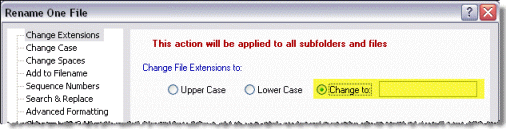
File extensions can now be removed not just renamed using the Change Extensions panel of the Rename dialog. Just select the Change to option but leave the field blank as shown below.
Backup if Newer optional comparison criteria
The Backup if Newer... copy routine can now use comparison information other than the modified dates to determine when a source file is 'newer' and should overwrite a target file. The new criteria includes the created and accessed dates as well as whether the source file is larger or smaller than the target file.
For complete details see Optional Comparison Meta-Flags
Improved formatting of history log entries for readability
The number and format of the entries in all the History (log) windows have rationalized and reformatted for easier reading and better grouping.
Touch files recursively without stopping on errors
Files can now be touched recursively with the option to not stop on errors, e.g. file not found, with any errors logged to the Errors log window which will be displayed after the operation is finished.
Command bar go to and select specific file
When the full path to a file is entered in the Command Bar FileBoss will not only open the containing folder but also select the file
Default compare resolution now five seconds
The resolution for determining if files have the same file time (Modified, Created, Accessed) has been expanded from 1 second to 5 seconds. This new time takes into account the different ways various versions of Windows store these times.
Interchangeable files for Options and Settings and File Sets
All data and Virtual Folder files created by FileBoss are now interchangeable between the 32- and 64-bit versions of FileBoss. In addition all files are now in standard xml format providing great flexibility not only for the current version but more importantly for the new tools in future versions of FileBoss.
Expanded right-click menus
In order to speed up access to FileBoss features many of the right-click menus have been expanded to include what use to be sub-menus.
Showing true icons
FileBoss now shows the same icons as Windows Explorer displays for such program as Tortoise and other special file management systems.
Renaming current folder
Fixed bug where the current folder could not always be renamed.
Copying to network drives time outs
Fixed rare but aggravating problem when aborting copy operations
Long copy operations are now easier to abort during the copy.
Fixed Find command from some right-click menus over folders
Previously the Find command would not be active
Fixed inactive right-click commands
Under some circumstances commands on right-click menus were not active when they should be.
Fixed animation in the progress window when copying files
The animations (flying folder) in progress windows would freeze even though copying was progressing normally.
Fixed problem with renaming the current folder in Explore view
Sometimes the current folder could not be renamed in the left window of an Explore tab.
Fixed rare problem in under Windows Vista where some systems files would be listed in the contents window but not in the navigation window
Fixed Windows Vista problem where ZIP, TIB, RAR and some other archive formats would sometimes be displayed as folders rather than files
FileBoss V2.301
What's New, What's Hot
21 November 2008
Version 2.3x is a free upgrade for all current FileBoss customers. Just download, install and enjoy!
Version 2.3 Overview
Version 2.3 is a rollup of all changes included since version 2.1 along with some nifty features new to this release. It also corrects a glitch that could potentially remove files unintentionally when move other files. We highly recommend you
New and Changed in FileBoss 2.3 since version 2.1
General Features
-
Structured recursive copying
When copying folders and file patterns have been specified to include or exclude in the copy FileBoss will only copy the specified files and not copy or create folders that do not contain the specified files.
This is shown in area highlighted in pink.
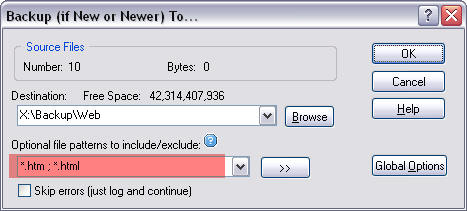
If the field is empty or contains all inclusive file specs i.e.,

Then the folders are copied normally i.e. all files and folders even empty folders.
This feature is available in the Copy, Backup if Newer, Move and Time Controlled Copying routines.
-
Fixed deletion problem when moving files
Corrected rare problem where it was possible to delete files that were not part of a move operation when file patterns were used. -
Expanded sources for Drag & Drop operations
Expanded FileBoss's capability to handle drops from more special external programs such as FTP clients. -
Better copying of advanced file types
FileBoss now handles files with multiple streams and other advanced characteristics in addition to standard file types. -
Faster Copying of large (16 MB +) files
FileBoss now applies special routines to copy large files i.e. files greater than 16 MB, faster and more efficiently. -
Case sensitive searches for filenames
Every Find dialog (accessed via the Find main menu) now allow the searches to be case sensitive. While this option is only infrequently needed when it is needed it can be invaluable. -
Cut and Paste
Cut and paste is now implemented within FileBoss. You can use Ctrl-X, Ctrl-V or the commands from the Edit menu. -
Backspace key moves up one level
Pressing the Backspace key in a normal Explorer Tab when in the navigation window (the list drives and folders on the left side)now moves the current folder up one level in the folder hierarchy. This is compatible with the same action in Windows Explorer. -
File Icons improved
File icons now show the shortcut overlay when appropriate. -
New Run as Admin
command
A Run as Admin command has been added to the command bar. When executed FileBoss will start another instance of itself but with Administrator permissions (on most systems you will be prompted to allow the program to run, for an Administrator name and password or for further information.
This command is mainly useful for those running Windows Vista and later operating systems. -
Meta-variables in target paths for copying
Meta-variables can now be used as part of the path when coping files in the same manner meta-folders can be used. Previously meta-variables were only available when renaming files.
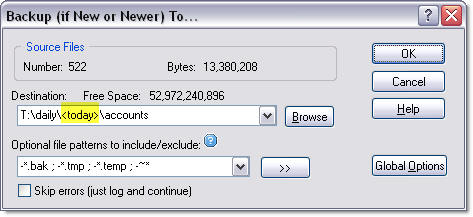
The two most common meta-variables for copy paths are:
<today> e.g. 2008-12-05
<now> e.g. 2008-12-05 14-28-13
In the above example T:\daily\<today>\accounts might translate into (depending on the current date, of course) T:\daily\2008-12-05\accounts. If the path does not exist FileBoss will ask you if it should be created.
For more about meta-variables see Using Meta-Variables
-
Better memory for Find
dialogs
The Find dialogs (those used by the commands under the Find main menu) have been completely reworked to better remember previous settings and actions. -
Right-click menu now has
FileBoss Menu >>
at top
The right-click menu was confusing to some due to the FileBoss menu having the the link to the shell menu at the top and the shell menu having the link to the FileBoss menu at the bottom. The are now both at the top. -
Progress bar bug corrected
Fixed a bug that would not display the progress bar on some systems. During long operations it could appear that FileBoss had hung when actually it was working normally. -
Copy files to clipboard
A problem has been corrected that was caused by some other programs that implement global key logging and then act upon those key sequences themselves. This was noticeable when those program were installed and the common Edit > Copy and Edit > Paste command were issued. Previously FileBoss would act on the command and then the background programs would pass the command on to Windows for processing creating confusion. FileBoss now blocks this type of activity from interfering with itself. -
Startup Options
The Startup Panel of the main options routine (select Options > Program Options... from the main menu. Has been reorganized to make the relationships between the various options more apparent. -
Corrections for XP Service Pack 3
Service Pack #3 for Windows XP implemented some new security policies that interfered with FileBoss accessing folders on network computers using the shortcuts to those folders listed under Network (or My Network depending on which version of Windows you are using). This has now been corrected by FileBoss working around the limitation.
-
Corrected problem with some
Find dialogs
Some of the dialogs for finding files and folders (those displayed using the Find menu) would not always redisplay the last used settings but rather return to their defaults. This has been corrected
-
Stopping Searches
Corrected problem where searching for text could not be stopped quickly when searching huge files. The same problem would sometimes appear when using partial paths in the Patterns fields of the search dialogs. - Fixed obscure Relative Time Searches
Fixed obscure relative time search. Previously when searching for files that have changed (or not changed) with the This Week setting and the current day was a Sunday no results would be returned.
- Fixed rare program crash
Fixed rare crash that would occur when right-clicking over a folder in the navigation (left-hand) window of a Virtual Folder or when attempting to rename the folder.
FileBoss V2
3 April 2008
List of Changes
This is a quick list of changes, big and small, made for FileBoss V2.
New User InterfaceComplete new GUI that not only makes FileBoss easier to use but allows greater flexibility, customization and a more convenient workspace. Not just tabs but tab groups too. |
Flatten Folders
Copies all files (or those that match optional file patterns) to one folder, either the root of the folder or another, user specified folder. |
Relative Times for Find and Select RoutinesAll times in search and select routines can now be specified as relative times, e.g. 'since yesterday', 'more than two months ago' etc. |
Concatenate Files
Combines files together (normally only useful for text files) to a new file or appended to an existing file. |
Skip Errors when CopyingA new check box has been added to every Copy based dialog that when checked will tell FileBoss not to stop and ask you any questions when it can not copy a file (for instance if it is locked by another program) but rather to just log the error and continue. |
Clean FoldersDeletes specified (or all) files from a folder and all its sub-folders with the option to delete any empty folders afterward.
Used to clean out temporary files. Also used to delete files in problem folders as the routine will not stop when it encounters an error but rather continue deleting all the files it can. |
Default Drag & Drop Copy methodThe default engine for copying Drag & Drop operations (on FileBoss) is now FileBoss for copies and links and Windows for moving files. Drag & drop Move operations are now always handled by the windows copy engine no matter what the specified copy engine is (e.g. The setting in the Advanced Options section of the Program Options dialog. |
Find Old Files
The opposite of Find Modified Files, i.e. finds files that have not been modified, accessed and/or modified within a specified time. |
Actions Apply to Navigation Window SelectionMost commands on the Actions menu can now be applied to the selected folder in the folder navigation window as well as to selected entries in the contents window. FileBoss determines which selection to use by which was the last to be selected. |
Time Controlled Copying
Designed for large copy operations this special copy routine can insert timed delays between files, between copy blocks within a file and / or every number of bytes copied.
Previously the browse dialogs always opened to the Desktop folder. |
Recursive Actions, e.g. RenamingMany actions, such as renaming, can now be recursive. This is especially useful when performing actions on the current folder in the navigations window. |
Find Menu items default to current folder(s)The Find routines, e.g. Find Old Files, Find Long Filenames, etc, will now automatically use the currently selected entries as their starting point (the Paths field) from the navigation or contents window as appropriate. |
Dynamic Virtual FoldersDynamic Virtual Folders are very much like traditional Virtual Folders except that you can add (just drag and drop), delete and manually sort entries. They can be created from selected entries, via a folder picker, empty or from a list of files contained in an external text file. All of these are created using the commands on the File > New Dynamic Virtual Folder > menu. |
New Standard Meta-Variables
Added standard windows names to the list of FileBoss meta-variables including |
Advanced and Simple Menus
The main menus come in two levels, simple and advanced. Of course commands can be added, removed and changed around for complete customization. The default is simple mode. Dual-Pane Mode |
New Time and System Meta-Variables
New meta-variables have been added which can be used almost everywhere you want to rename files: |
Simplified Renaming OptionsFileBoss's powerful renaming control center has been simplified with fewer options per page on more pages. |
Options When Exiting FileBossTo exit FileBoss without saving any options or settings only pressing the Ctrl key while selecting File > Exit FileBoss command from the main menu (or clicking the close button 'x' on the title bar) is needed instead of the previous Ctrl + Shift combination |
Options When Starting FileBossTo start FileBoss and control what it loads and doesn't load from the last session hold down the Ctrl key until the start dialog appears in which you can choose the various load options. |
Merged Find tool bar into the Command Bar
Added up and down buttons. |
Bookmarks are now FavoritesBookmarks have been renamed Favorites. This has been done so the under thirty-five group will know what they are. |
File Sets are now Virtual FoldersFile Sets have been renamed to Virtual Folders so users under thirty will know what they are. |
Menu Item Names ChangesNames for menu items on the File menu have changed, e.g. Open View List... to Open Tab Group... and New File Set (Search)... to Search for Files...., Quick Merge... to Backup if Newer..., Explore Folder in New View is now Open in New Tab\t(Ctrl+Click) |
Wildcards in Search PathsMore precise control over path delimited patterns in the Search dialogs When searching you can now enter variable paths such as \s-*\* which will only return files in folders that begin with 's-'. You can get even trickier and use something like \2007\s-*\* or even \Jan ????\s-*\* One advantage of this is that in the returned Virtual Folder you can just do a select all and go straight to the structured file copy routine as no extraneous file will be in the File Set. |
Version 1.7
May 2007
|
Where is Version 1.6 Version 1.6 does not exist. The need for compatibility with Microsoft's new Windows Vista overtook our release schedule and 1.7 is the result. |
PDF Manuals Printable, viewable, chewable PDF Manuals are now available for download. To find out more and download your very own today go to PDF Manuals. |
List of Changes
|
Vista Compatibility FileBoss is now compatible with the Vista version of Windows as well as Windows XP, 2003 and 2000.
Previously when FileBoss was run on many Vista installations it would take several minutes for any menu to be displayed giving the appearance that FileBoss had crashed. |
Changing Advanced Advanced NTFS file attributes can now be changed. NTFS Attributes that can be changed include: Temporary, Offline Compressed, Encrypted Reparse Point, Sparse Not Indexed (Content) |
|
Support for filename Added support for filenames up to 2048 bytes long. Which operations are available for filenames over 259 bytes is dependent on the version of Windows, the file system and other programs in use. But renaming is almost always available (to shorten the filenames so they can be used by other programs). |
Equate File Times to each other Use the Command Bar (F8) to equate one or more file's times. Such as making all the created file times the same as all the modified times.
|
|
Digitally Signed Setup and EXE Both the setup file and the main executable file, fileboss.exe, are now digitally signed.
The certificates are issued by VeriSign, the most trusted name digital security for Windows. |
Better Detection of Device Changes Better detection of new devices such as USB flash and hard drives as well as when new volumes are mounted, e.g. encrypted logical drives. |
|
Rename on Collision When copying files and the target already exists the dialog asking you what to do now contains a field for you to enter a completely new filename for the copied file. |
Searching for Text in Files The maximum length of strings to search for in files has been increased from 255 characters to over 32,000 characters to accommodate complex RegEx searches. |
|
Renaming Files, When renaming a group of files the main control dialog has a new checkbox at the bottom, No Confirmation (pressing OK will rename all files immediately) |
Browsing for Folders When browsing for a folder such as selecting a Target folder when copying files, FileBoss will now attempt to open the browse dialog at the folder that is currently in the associated field.
Previously the browse dialogs always opened to the Desktop folder. |
|
New Default Toolbar Size The default button size for toolbars has been changed to Large. Previously the button size for new installations was determined by the screen size.
To change to the large buttons use the Tools > Options... command from the main menu and under Toolbar Size select Large. |
Volume Names for Drives By default Bookmarks for drives now display volume names along with drive letters instead of just drive letters.
To see how to change your current setting Click here for more... |
|
Tabs for Views now Display Previously some tabs would be blank such as when the My Computer folder was displayed.
|
Corruption of Tabs Fixed problem where really long filenames could corrupt the display of the tabs for each view, i.e. Explore and File Set windows.
|
|
Eliminated Some A number of annoying warnings have been eliminated that didn't protect the user from anything very harmful. |
New Graphics for buttons New buttons are in the works for FileBoss and the new ones are here that give an idea of what is coming. |
|
Help for Bookmarks Added generic help for all bookmarks. Previously a Help error as displayed when Help should have been shown. |
Splash Screen Corruption Fixed problem where the splash screen would sometimes display with random pixels corrupted. |
|
Changed Default On new installations the toolbars are now arranged slightly differently. The situational toolbars for the Explore and File Set views are now on top rather than the left side of FileBoss.
This only affects new installations of FileBoss. |
Annoying 'Tips of the Day' For new installations the Tips of the Day feature is now turned off by default.
This only affects new installations of FileBoss. |


New Features in Detail

Equate File Times Using the Command Bar
Use the Command Bar (F8) to equate file times. After files have been selected use these Command bar commands for setting file times.
Set Modified to <time>
Set Created to <time>
Set Accessed to <time>
Where time can be one of the following:
Accessed, Modified, Created or Now
Note that unlike the Change Attributes and Touch routines only one of the file times can be set at a time. To set multiple times chain the commands.
ex:
set modified to created
set modified = created
set access to now

Renaming Files, Option for No Confirmation
When renaming a group of files the main control dialog has a new checkbox at the bottom:
No Confirmation (pressing OK will rename all files immediately)
When checked you will not be asked to confirm any name changes.
For safety reasons this checkbox will be cleared every time FileBoss is started but once checked it will stay checked for the current session.

The default button size for toolbars has been changed to Large. Previously the button size for new installations was determined by the screen size.
To change to the large buttons use the Tools > Options... command from the main menu and under Toolbar Size select Large.

Changing Advanced NTFS Attributes
Warning!
This is an extremely advanced action and should not be used by anyone who doesn't really know what they are doing.
Normally this routine is only need in extreme cases of a corrupted file system.
Advanced NTFS file attributes can not be modified. NTFS Attributes that can be changed include:
Temporary, Offline
Compressed, Encrypted
Reparse Point, Sparse
Not Indexed (Content)
Use the Actions > Advanced > Change Advanced (NTFS) Attributes command from the main menu after selecting the files you want to change.

When copying files and the target already exists the dialog asking you what to do now contains a field for you to enter a completely new filename for the copied file.

By default Bookmarks for drives now display volume names along with drive letters instead of just drive letters.
To change your current setting use the Tools > Options... command from the main menu and select the
Explore Views panel as shown below:

The differences in the display of bookmarks is shown in the before and after screen shots below:


Version 1.5
30 August 2006
This is a quick list of changes, big and small, made for FileBoss version 1.5. Full details are given below:
List of Changes
|
Optional Include / Exclude Files when Copying The File Copy tools now allow optional patterns that specify which files should and / or should not be copied when recursing through subfolders. |
Making Multiple Copies Files, folders or tree structures can now be duplicated by the thousands just as easily as one at a time. |
|
Progress Meter The progress meters while copying files now show the progress of individual files. |
Fast Folder Navigation To better access folders containing thousands of files and subfolders FileBoss now has a special option that allows access to these folders in seconds rather than minutes. |
|
Chaining Commands Command Bar commands can be chained together so that they are executed one after the other. To chain commands type " <> " between them. |
Support for NTFS Attributes Files can now be found by NTFS attributes (Temporary, Offline, etc) as well as by the normal file attributes. In addition any NTFS attributes are displayed in the same column as normal file attributes. |
|
Default file time and file size sorting The default order for sorting entries by file times and sizes can not be set to descending or ascending (the default) |
One step drag in Sticky Mode You can now click to select a file and immediately start a drag and drop operation in both Sticky Select and Normal Select mode. Previously this was only available in Normal Select mode. |
|
Detect Device Changes FileBoss now detects when new hardware is plugged in and will adjust the list of available drives accordingly. |
Popup (Right-Click) Menus The item 'Shell Menu >>' that was at the bottom of the many right-click menu is now at the top of the menus and named Windows Explorer Menu >> to make it easier to understand and find. |
|
Drop targets are highlighted When files and folders are dragged across folders during a Drag & Drop operation the folder underneath the cursor is highlighted for better clarity and conformity with other applications. |
Selection Enhancements Many enhancements and small fixes for selecting entries with the mouse. Now more compatible with Windows Explorer. |
List of Changes
|
Program freeze deleting folder When deleting an empty folder from the left-hand window of an Explorer View FileBoss would sometimes (but infrequently) freeze. |
Navigation list (left hand Window) not updating When subfolders were deleted in the Contents Window the navigation pane would sometimes not reflect the changes |
|
Error adding new folder A new folder would sometimes be created under the wrong parent folder. After a specific sequence of moving between folders in the Navigation window involving the mouse and keyboard, a new folder would sometimes be created under the wrong parent. |
Confirming Deletion Intermittent No Confirmation message when deleting a folder from the Navigation list (left hand Window) in a File Set FileBoss would not ask for confirmation before permanently deleting a folder from a File Sets navigation window |
|
Changing Date Formats Fixed bug where FileBoss would crash if the format for displaying dates was changed in the Date Formats panel of the Tools > Options... dialog. The cut and paste work around is not longer needed. |
Network Targets Sometimes when selecting a network based target for a copy operation the shared network folders would not be displayed as choices. Instead the only thing displayed would be the drive letter followed by a dollar sign, e.g. C$. |
New Features
Optional Include / Exclude Files when Copying
The File Copy routines including, Copy File, Move File, Update and Quick Merge now allow patterns that specify files should and / or should not be copied when recursing through subfolders.

In the above example all files would be copied except those with bak and tmp extensions and those with names starting with a tilde (~). Separate multiple patterns with the bar character (|) and precede patterns to be excluded with a minus sign (-).
If no patterns are entered all is assumed (i.e. leaving the field blank is the same as entering a * or the traditional *.*).
Note that these patterns only affect file in subfolders. Files directly selected will be copied no matter what patterns are entered.
More
See Copying Files for more.
Starting with version 1.5 of FileBoss commands can be chained together so that they are executed one after the other. To chain commands type " <> " between them.

For example consider the following Command Bar entry:
goto <md>\FileBoss Data <> show *.fbopts* <> select files
The three commands are separated by <>:
 goto <md>\FileBoss Data
Tells FileBoss to display the folder <md>\FileBoss Data in the current Explore View (or create a new Explore view if necessary). (Note that <md> is a meta-folder representing the current user's My Documents folder.
show *.fbopts*
Tells FileBoss to set a filter so only files matching the following pattern are displayed.
select files
Tells FileBoss to select all visible files. (Note that step two can be skipped by changing this command to select *.fbopts*.)
There is no limit to the number of commands that can be chained other than the line can not exceed 32,000 characters.
More
See The Command Bar for more about the Command Bar and Chaining commands.
Default Sort for Times and Sizes
The default sort direction (e.g. latest to earliest or earliest to latest) for file times and file sizes.
To change these defaults select
Tools > Options... from the main menu and then select the Views
panel from the list on the left-hand side.
Check or clear the boxes as appropriate (as shown in the area highlighted in yellow below).

The item Shell Menu >> that was at the bottom of the many right-click menu is now at the top of the menus and named Windows Explorer Menu >> to make it easier to understand and find.
And the Shift-Click item that was duplicated at the top of the menus is now only listed at the bottom.

FileBoss now supports the Temporary, Offline, Not indexed, Encrypted,
Compressed, Reparse point and Sparse file
The support includes using the attributes to search for files and folders in the Find By Attributes routine and displays them in the Attributes column of any folder listing.

More
For complete details see: Find Files by Attributes
The progress meter displayed when copying files now shows the progress of individual files (if they are large enough to take more than several seconds).
Note that for small files the lower progress meter will not move as the time it takes Windows to update your display could significantly slow down the copy process.

A number of small enhancements have been made to the way entries are selected when dragging the mouse. Most of these focus on making the process more natural by using the same techniques that are used in familiar programs such as Windows Explorer. One example is FileBoss now distinguishes between clicks on the actual name of an entry and clicks to the right of an entry (but still in the name column).
Click anywhere to the right of the entries name to start selecting files:

You can now click on an entry to select it and, while holding the mouse button down, drag the entry to drop it somewhere else. Previously this common operation was not available when in Sticky mode.
Target Folders Highlighted
As the mouse passes over folders while in a Drag operation the any folder underneath the mouse cursor is now highlighted.
The graphic below shows the twelfth_night.1.1.html file having been clicked and being dragged over the Twelfth Night folder.

Make Multiple Copies at One Time
FileBoss can now make one or thousands of copies of selected files and folders in just one operation.
Select the file(s) or folder(s) you want to copy and then use the Actions > Duplicate... command from the main menu. In the Duplicate Files
dialog specify the normal options and then enter the number of copies you want to created by entering the appropriate number in the field at the bottom-right of the dialog.

More
For complete details see: Duplicating Files
Eliminates Long Pauses when Opening a Folder
Due to routines deep in the Windows operating system navigating down through folders that contain thousands of file and subfolders can cause a long delay (several minutes) between clicking on a folder and seeing its contents. Because the problem is buried deep in Windows it affects almost all programs whether they are part of Windows itself or third party products.
But FileBoss has an option that virtually eliminates this delay. When Fast Folder Navigation is turned on the long delays will be eliminated.
Turning Fast Folder Navigation On and Off
FFN can be turned off and on for each Explore view or as a global setting. (The Global setting is the default that will be used by any new Explore View.)
To set toggle FFN of and on for the current view either use the Explorer > Fast Folder Navigation command from the main menu or press Ctrl+K. As shown in the menu fragment below.

Fast Folder Navigation in Action
The first fragment below shows a typical folder list under normal circumstances.

This second fragment shows a typical folder list when Fast Folder Navigation is turned on. Note that every folder has the plus sign to the left of the folder name, this is because FileBoss hasn't wasted time allowing Windows to check for whether or not there are any subfolders.

More
For complete details how to turn Fast Folder Navigation on and off and how to display its toolbar button see: Navigating Large Folders Quickly
Version 1.4
Released 12 April 2006
List of Changes
This is a quick list of changes, big and small, made for version 1.4 of FileBoss. Full details for each change are given below:
|
New & Improved Neat Stuff |
|||
 |
Finding Files Made Easy |
|
Quick Merge |
|
|
Copy only if Archive Needed Option |
|
Sorted Bookmarks |
|
|
Universal Meta Folders & Bookmarks |
|
More Drag & Drop Objects |
|
|
Command Bar Improvements |
|
Standardized Drag & Drop modifier keys |
|
|
Auto Viewers listed on the Main Menu |
|
External Tools & Auto Viewers now available for folders |
|
|
Export / Import External Tool and Viewer definitions |
|
Separated Default folders for User and Program Data |
|
Fixes |
|||
|
|
Crash when certain filenames highlighted |
|
Crash when using really long filenames |
|
|
File sizes greater than 4 gigabytes were not displayed correctly |
|
Delay rendering recursive, mounted Folders |
|
|
Possible crash if FileBoss was closed when another program was processing a lengthy drop that originated from FileBoss |
|
Infrequently some Registry entries were not being removed when exiting the app is special exit mode |
|
|
Rationalized some syntax for the Command Bar (F8) | ||
New Features
 Finding Files Made Easy
The new top-level menu item Find contains command for finding common types of files:

The first five items are new, simplified routines for finding files that are commonly searched for. For more about the individual commands see:
Quick Merge
There is a new routine to quickly merge files from one folder / path to another without having to use the set all the options in the basic Copy To dialog.
To use this new too select the files and or folders you want to merge in either Explore View or in a File Set and then select Actions > Merge... from the main menu, press Ctrl+Shift+F7 or use its command button.
(To display the command button right-click over the actions tool bar and select Add/Remove Buttons... from the popup menu. The Actions tool bar looks something like (the Merge icon on this toolbar is third from the left):

Copy only if Archive Needed Option
You can now limit which files are copied by whether Windows has set the Archive flag (e.g. the file has been changed since it was last backed up.) The new option is on the Copy Files dialog as shown below.

Sorted Bookmarks
Bookmarks are now sorted alphabetically by default. If you like the old way (sorted by when they were created) you can change that in the Tools > Options... dialog as shown below.

Universal Meta Folders & Bookmarks
Meta folders and Bookmarks can now be used most anywhere a full path to a folder is used, creating File Sets, comparing folders, copy to dialog, command bar and many other places.
The syntax is to enclose the meta folder or bookmark name within angle brackets such as, <meta folder> or <bookmark>.
Since a meta folders and bookmarks define complete paths they can not be tacked onto the end of other paths. However other folders can be added on to them. For example to specify FileBoss's default data folder you could use <md>\File Boss Data where <md> specifies the My Documents folder.
To see a list of available meta folders on your computer use the Tools > Special Folders command from the main menu to display the list of Special Folders in a dialog. The meta folder names are on the left. Abbreviations for the meta folders, such as md for My Documents usually consist of the first letter of the first two words in the meta folder name.
More Drag & Drop Objects
Microsoft Outlook attachments has been added to the list of objects that can be dropped on a folder in FileBoss. The same can be done with Microsoft Outlook (full or Express) message, Microsoft Outlook Express Newsgroup posts as well as many other objects from other programs and email clients.
Standardized Drag & Drop modifier keys
When dragging files, folders and objects over FileBoss holding down the:
Shift key forces a Move operation
Ctrl key forces a Copy operation
Alt key forces the creation of a Link to the Dropped objects
(But note that in some circumstances one or more modes will not be available such as when dropping objects frequently the only available option will be to copy.)
Auto Viewers listed on the Main Menu
Corrected bad design where auto-viewers ( from the main menu) were not listed unless they were active. Now they are listed even if they are inactive so that they can be easily activated.
External Tools & Auto Viewers now available for folders
Export / Import External Tool and Viewer definitions

New options have been added to the setup panels for both External Viewers and Tools. The definitions can now be saved to disk and loaded into another FileBoss.
In addition new qualifiers have been added such as whether or not the tool / view will apply to Files or Folders.
Separated Default folders for User and Program Data
The default location for user created files (such as when File Sets are saved to disk or a new options file or window list is created) has been separated from the default location for FileBoss's automatically generated data files.
Both places can be set in the Tools > Options... dialog as shown below.

Bugs Killed
Crash when certain filenames were highlighted
Fixed crash when filenames contained a percent sign followed by one of several specific letters, with or without intervening digits, FileBoss would sometimes crash.
Crash when using really long filenames
Fixed crash where computers system that had really long filenames anything over 255 characters would cause FileBoss to crash but only rarely and not necessarily.
File sizes greater than 4 gigabytes were not displayed correctly
Fixed problem where file sizes greater than four gigabytes would not display correctly in the contents view.
Delay rendering recursive, mounted Folders
Fixed extremely rare problem where FileBoss would recurse seven levels down when a drive was mounted that referred to itself.
Possible crash if FileBoss was closed while another program was processing a lengthy drop that originated from FileBoss
Fixed rare situation where if FileBoss was closed while another program was processing a lengthy drop that originated from FileBoss it would crash just before closing.
Version 1.31
Version 1.31 of FileBoss can be installed directly over your current FileBoss.
Minor Improvements and Fixes
Navigation Speed - Improved
FileBoss now displays specific folders (such as when restarting or from a bookmark) much faster depending on the folders being accessed.
The Command Bar & Network Drives - Fixed
When the network paths (such as \\Company\Server\C) were entered in the command bar FileBoss would not always display the indicated drive or folder.
Selecting Zero Length Files - Fixed
When selecting files with the Select Files Dialog if the By Size option was enabled and the minimum and maximum file sizes were equal (most notable when both were set to '0') FileBoss would not select any files.
Individual Wizards Disconnected - Fixed
The individual wizards (File > Wizards >) were disconnected (This did not affect the wizards when they were accessed from the Master Wizard (File > Wizards > Master Wizard...)
Selecting Files Using Complex Patters - Fixed
The exclusion indicator (-) would not be honored, e.g. Select *.* |-*.exe would still select all exe files.
Version 1.3
Released 5 November 2005
Improvements
Modern Look and Feel
FileBoss has been re-skinned to sport a modern look and feel.
Command Bar for Direct Entry
The Command Bar is used to quickly:
enter common commands
type or paste paths to folders to be explored
set temporary filters
go directly to specific files or groups of files
and much more.
Just press F8 and the Command bar will appear so you can start typing. Type Help in the command bar to learn more about it and later just type a command followed by Help or a question mark and a bubble will appear to how to use the command.
As just two examples of what the command bar can do that you can't do any other way is:
create folder Wedding Pictures
which will immediately create a new folder named Wedding Pictures in the current folder.
DOS cur
Opens a DOS window in the folder current folder
DOS <md>
Opens a DOS window sets it to the My Documents folder
DOS C:\Batch Files
Opens a DOS window and sets it to C:\Batch Files
DOS
Opens a DOS window set to the Explore View folder.
Click here for the complete details and command list.
Better Sequential Renaming Routines
Reorganized Renaming Groups
There is a new Sequential Renaming panel that simplifies renaming files with sequential numbers. The previous panel is still present as it gives ultimate control over renaming files and, as such, has the new tile of Advanced. Both routines now allow you to specify an increment to use when using or adding sequential numbers to filenames.
Reorganized Transformation Renaming Panel
The panel for applying transformations when renaming files has been changed slightly to lessen the chance of applying unwanted transformations by mistake.
Customizable Toolbars
The toolbars can now be customized by adding and deleting buttons. To customize any toolbar right-click over the toolbar and select Add / Remove buttons from the context menu. You can also remove button quickly by simply holding down the Shift key while dragging a button off the toolbar and into the center of FileBoss's window.
Added Quick Delete method for Bookmarks and File Filters
Simply hold down the Ctrl key while clicking on one of the items in any menu of bookmarks or file filters. You will not be asked for confirmation the item will simply be deleted.
Added Options for Automatic Restart on Windows Boot
FileBoss can now be told to always start when Windows does or to start with Windows if FileBoss was running when Windows last closed.
These new settings can be set by selecting the
Tools > Options... and then the Startup panel. (FileBoss still defaults to Never on new installations.)

Added support for Forward and Back mouse buttons
In Explore View pressing these button is the same as clicking the forward or back toolbar buttons.
Added 'Repair' Option to Start > Programs > FileBoss menu
This does not affect the program itself but rather the installation program. (This has been available in some interim releases.)
 Click image for full size view
Added separate option for how the title of a view is displayed on the view's tab (as opposed to FileBoss's title bar)
Previously the same text was displayed on FileBoss's title bar and the tab for the active view, e.g. C:\....\Pets and C:\My Pictures\Pets, now what will be displayed on the tile bar and on the tabs can be set separately. Use the Tools > Options... command from the main menu and select the Explorer View group. The settings are under the Display Settings group.
New default External Tools for Dropping to DOS
Dropping to DOS for a specified folder can be accomplished using external tools. This isn't a new feature but is not documented and, for new installations, two default tools will be installed, albeit disabled, for these tools.
Which tools you use depends on whether your version of Windows is 98, ME and NT or Windows 2000 and later.
You can enable the appropriate tool using the Tools > Options command from the main menu and selecting the External Tools group.
For those who are not installing a fresh version of FileBoss the following can be used examples as to how to create the appropriate tool. The first is for Windows 2000 and later versions. The second is form Windows 98, ME and NT systems.


Click images for full size views
Added
Windows > Close All Windows command to main menu
Added
Close All Other Windows item to the right-click menu over the tabs for the views.
Added list of Bookmarks to the right-click menu of each Explore view
 Click image for full size view.
Bookmark & Dynamic Drives
The bookmarks display now includes a dynamic list of available drives that reflect the current state of your file system every time the bookmarks are displayed.
If you would like to remove the old, static drive bookmarks simply click on each one you want to remove while holding down the Ctrl key.
The dynamic drives can be displayed with or without their names, e.g. 'Local Disk (C:)' or C:\.
You can change where and how the dynamic drive entries are displayed using the Explore panel on the
Tools > Options...
dialog.

Added two new menu items for creating File Sets (Searching) to the Right-Click menu in the Contents window
When a folder is the current item the menu command Current Folder > Search Folder... will invoke the Create File Set dialog with the path to search set to the current folder.
When multiple folders are selected the menu command Selected Folders > Search Folders... will invoke the Create File Set dialog with the path to search set to each of the selected folders so that multiple folders can be quickly searched at the same time.


Click images for full size view
The commands to copy file names to the clipboard now work on the selected folder in the Navigation window as well as to selected files in the Contents window
The Edit Copy Names to Clipboard > commands (F10 and Ctrl+F10) will copy the selected folder's path and name (or just name) to the clipboard if the Navigation pane has the focus. If the Contents window has the focus the paths and names of its selected items will be copied.
 Click image for full size view
Click and Drag is available in the Contents View when Sticky mode is turned off, i.e. when the method of selecting files emulates the way it is done in Windows Explorer.
Sticky mode can be turned off using Select > Sticky Selections toggle from the main menu. When this is the case you can still click and drag to select multiple files at once by clicking and dragging to the right of the filename column.
Missing Drop Target Target Folders
When FileBoss starts it checks the list of active Drop Targets to make sure that they still exist. Previously if a folder associated with a Drop Target did not exist FileBoss would force you to select a new folder or delete the Drop Target.
Now Drop Targets can be kept so that they can be used when the target folder becomes available again. This is hand for network connections and temporary storage devices that are not always available.
Bugs Fixed (Program hangs or crashes)
Files copied to the clipboard outside of FileBoss and then dropped on a folder in FileBoss could cause the program to crash
This might also have happened when dragging files from another program.
Stability problem on some systems
An apparently random stability problem (program would crash or hang) has been fixed. This could happen in any windows configuration but it was most visible on systems with certain plug-ins installed that were heavily used.
Minor improvements / Baby Bugs Fixed
Changed the minimum width and height FileBoss can be to resized down to.
Now the default minimum still allows a few folders and entries to be seen depending on the arrangement of Results window and other toolbars.
FileBoss can be resized down to the small title bar as before by checking the Allow FileBoss to be resized to a small title bar box in the Advanced 2
panel after selecting Tools > Options... from the main menu.
Changing FileBoss from being the default viewer for folders and drives to the just being on the shell's context menu did not work
Start Folder specified in the External tools dialog would sometimes not be set correctly when a command is invoked
Edit | New Folder command in Explore View was incorrectly deactivated when the Contents window (right side) had the focus
When files were dropped on or deleted from a folder in Explore view the '+' and '-' indicators next to the affected folder in the Navigation window would not always update correctly
On some systems using non-standard font sizes the title text on the View tabs would sometimes be too large for the tab itself.
The.
Progress dialog now shows matching 'Checked' and 'Processed' numbers.
Previously the way existing folders where recorded the Copy Progress dialog could give the impression that not all files where copied when the actually had been.
Resetting the toolbars to their default locations would hide the Select and Action toolbars
Sometimes an entry would have to be right-clicked two or more times for the context menu to be displayed
Renaming files during any Copy operation
Duplicating files that had no extension
If the options for the new filename was set to 'After Extension' or 'Before extension' and a file did not have an extension, the addition would be put after the name. This has been changed so that when either option is set and no previous extension exists the added text becomes an extension.
If this is not he behavior you want use the 'After Name' option instead.
Changes to the Allow only one FileBoss to run at a time
option on the Startup panel of the Options dialog would not take effect until FileBoss was closed and restarted.
Changes now take effect as soon as the Options dialog is closed.
Version 1.221
Released 25 August.
Fixed Drag & Drop feedback error where FileBoss would sometimes say that a file could not be dropped when in reality it could be.
Version 1.220
Released 23 August.
Version 1.220 adds significant improvements to FileBoss's Drag & Drop interface for those working with folders holding thousands and tens of thousands of files.
In addition there are a number of small improvements and bug fixes.
Improvements
Dramatically improved Drag & Drop operations on huge folders
Drag and Drop operations become unusable when dragging large numbers of files (like tens of thousands) from any application to any application. Previously FileBoss was no exception.
Now you can Drag thousands of files from one FileBoss window to another with the same response time as when you only drag one file.
The special article about Drag and Drop explains this both in summary and in detail. See All about Drag & Drop for complete details.
Use the Ctrl key to force new instance of FileBoss
If FileBoss has been set to always open in the same instance - e.g. if a folder is clicked on the desktop and FileBoss is already open that folder will open as a new view in the current FileBoss - you can now force a new instance by holding down the Ctrl key while FileBoss starts.
Progress Dialogs now update every half-second
Previously some Progress dialogs updated too frequently making reading difficult and slightly slowing down some of the operations they were reporting on.
FileBoss no longer updates on every size change to a file
Previously Explore Views would update every time the size of a file changed. This could be quite disconcerting, and would sometimes slow the system down, when files where being repeatedly written to by other applications.
Improved Search dialog for creating a File Set
Changes to the User Interface
Confusing use of Properties and Classic Properties
menu items
Bugs Fixed (Program hangs or crashes)
Folders could not be renamed in the Navigation Window.
On a few systems FileBoss would sometimes hang when this was attempted
Baby Bugs Fixed
The three View > View Result Logs > commands did not always work
When a result log was not active the command would not display the most recently used result log even when it was available. Instead it would just as for the result log name.
New Drop Targets names would not always be displayed immediately
The name of a Drop Target would not change immediately after it had been set using the Properties command from the Drop Target's right-click menu.
Icons would not always be displayed for files on CD Drives
Listings in Contents window would not display file icons on some CD Drives and and some other type of removable media
Drop Targets would always use the Windows copy engine
No matter what the settings were in the Advanced 2 options dialog FileBoss would always use the Windows copy engine when files were dropped on a Drop Target
F3 key (go to next) would sometimes forget where it should go
Pressing the space bar to select / deselect an entry would clear the F3 key's memory of what to do next.
Number and size of selections not reported correctly on status bar
Selected information on status bar would not update after pressing the Space bar (to select / deselect the current entry) or when the Up and Down Arrow keys were used with the Ctrl key held down.
Status bar not updated when moving between views
Display of number of selected files on the status bar would not always revert back to 0 when navigating through the folder tree in Explore View
Drop Target copy method not remembered
Option to set copy method (to either FileBoss or Windows) for Drop Targets in the Drop Target panel of the 'Tools > Options ...' dialog would not be remembered, i.e. the method was always set to 'FileBoss'
Inline filename editing in the Contents Window would not scroll long names in the edit box.
Fix some minor graphics on dialog boxes for Windows 2000
The graphics for the delete, recycle and destroy confirmation dialogs would tile when displayed under Windows 2000.
Updated File Set Properties would not be displayed correctly after removing entries from a File Set.
This only happened when the files or folders were removed from from the File Set, not when they were deleted or recycled. It was a very obscure glitch that probably only one user noticed
When creating a File Set (search) if the list of paths had an empty path FileBoss would not do anything when the OK button was pressed nor would it say why
An example of such a condition is:
C:\A | C:\B | C:\C | | C:\D
After large number of files were dropped on a Drop Target the cursor would sometimes remain a Drag & Drop cursor until the copy process was over
Version 1.210
Version 1.200 put FileBoss through its final stress tests before going into general release. Thanks to all who used it on such diverse sets of hardware and software.
Version 1.210 fixes a few significant problems, a number small annoyances and adds some much needed conventions to the user interface.
The two most significant bugs were crashes 1) when running under Windows 2000 and 2) when the host system had shell plug-ins installed that use an eSellerate wrapper.
All of this and more is detailed below.
Bugs (Program hangs or crashes)
Creating a new folder would frequently hang FileBoss under Windows 2000
While this was not a certainty it was quite regular. The new folder would be created and displayed and then FileBoss would freeze.
FileBoss would occasionally hang when the '*' key was pressed in Navigation view
Pressing the '*' key to expand all folders below the current folder in a Explore View navigation window would often hang FileBoss, especially if there were a large number of subfolders. The '*' has been disabled. The plus (+) and minus (-) keys work as expected and the asterisk key (*) will still expand all folders in a File Set view.
Corrected rare crash that could happen if the right mouse button was clicked repeatedly and rapidly in the Contents window
You really had to work to get this one to happen. Now all that work would be in vain.
Fixed crash that would sometimes occurr when invoking the shell' context menu
The crash was due to conflicts between FileBoss and certain plug-ins using the eSellerate wrapper. While quite obviously not all plug-ins have been tested there should not be any more problems
Baby Bugs
Double-clicking shortcut to a document or program would not open the target
But the shortcut could be opened by right-clicking and selecting 'open' from the menu.
Popup menu over a bookmark in the Navigation view was wrong
The right-click menu displayed when the cursor was over a bookmark in the Navigation window was incorrect. The menu for a normal forlder was displayed instead. Selecting an item from the incorrect menu had unpredictable results. The correct menu is now displayed with options that only apply to the bookmarks
Clicking the Bookmark button did nothing
Clicking the bookmark button on the Explorer toolbar did nothing even though the hint indicated that it would add a bookmark to the list. Both the hint and the action were wrong. Now clicking the button will display the list of bookmarks as menu items along with items for editing and adding bookmarks.
Bubble tips in the Contents window would not always display the correct fields
Changing the fields to be displayed using the View > File Tip Balloons > menu would not always change the settings. The tips now work as expected and when set for one window are set for all windows.
Corrected problem where option to invoke only one instance of FileBoss when it is the default viewer for drives and directories would not always work
When the Windows integration option (Tools > Options... Windows Integration) Open in an existing FileBoss window if present option was checked it would not take effect unless Windows integration was turned off and then back on.
Now it takes effect immediately when checked (or unchecked).
Corrected episodic problem in Explore view where deleted files would not be removed from either the Navigation or Contents windows
Fixed location of right-click Menu over Results Window title bar
The context menu associated with the Results window would sometimes be displayed far away from where the mouse was clicked. Fixed. (To display the right-click menu for the results window the mouse must be over its title bar. This will be expanded in a future release.)
Confirmation dialog for the Merge operation showed 0 for number of files to be merged
The correct number of entries to be merged is now displayed.
Overwrite warnings did not act properly when dropping files and the FileBoss Copy Engine was active
The copy warnings (Ask, Rename, No, etc) were taken from the settings for the main copy routine (Actions > Copy To...) rather than settings from 'Advanced 2' panel of the Tools > Options... dialog. This has been corrected.
Wrong progress meter when copying files
The wrong progress meter would sometimes be displayed when copying files using the Action > Copy To... command from the main menu. This only happened when a mixture of files and folders were being copied.
Date Formats Could not be Changed
Changing formats for the various dates (e.g. Modified, Created, Accessed) in the Date Formats panel of Tools > Options... dialog had no effect and would even revert to the defaults when the dialog was closed.
FileBoss would start minimized to the toolbar
If FileBoss was minimized when it was closed, either expressly or due to Windows shutting down, when it would be minimized when restarted.
In the interests of standardization FileBoss will no be displayed in a normal sized window if it was minimized when last closed.
Toolbars and splitter bar restored incorrectly
Sometimes when FileBoss was restored from being minimized the location of the toolbars and the width of the Navigation window would be aggravatingly different than what they were before being minimized. This has been corrected.
Improvements
Tips on the status bar
Tips for menu items and toolbar buttons are now displayed on the status bar.
Added 'Ins' as shortcut key for creating a New Folder
New folders will be created under the currently highlighted folder in the Navigation window
Shortened delay when launching FileBoss
Most noticeable on slower computers and/or under older operating systems.
Changes to the User Interface
Moved the default location of view specific toolbars to the left side of FileBoss's main window.
When first installed or when the options revert to their default state the View specific toolbars, i.e. for Explore and File Set Views, are now displayed down the left edge of the application window. This puts them right next to the Navigation window where they should logically be.
(If you are already using FileBoss try dragging these toolbars to the left side of FileBoss' window. There is a good chance you will like it better.)
Changed which toolbars are visible by default
On new installations the Action and Select toolbars (formerly located at the bottom and right side of the workspace respectively) are now hidden by default.
Changed stupidly named menu items 'File > Save Window List...' to 'File > Save View List...' and related items
Consistency is good!
Removed ellipses from Properties... and Classic Properties...
Standards must be followed...sometimes.
Confirm Merge dialog: made notice area read-only
Previously the notice text could be changed by the user for no reason other than to confuse.
Help
Missing Help Guide Entry
Help guide entry "Finding Files Containing Text" was broken. Fixed.
Fixed missing help for the menu at 'File > New File Set From Template >'
This same help was missing from other menus as well.

 What do you need to do today?
